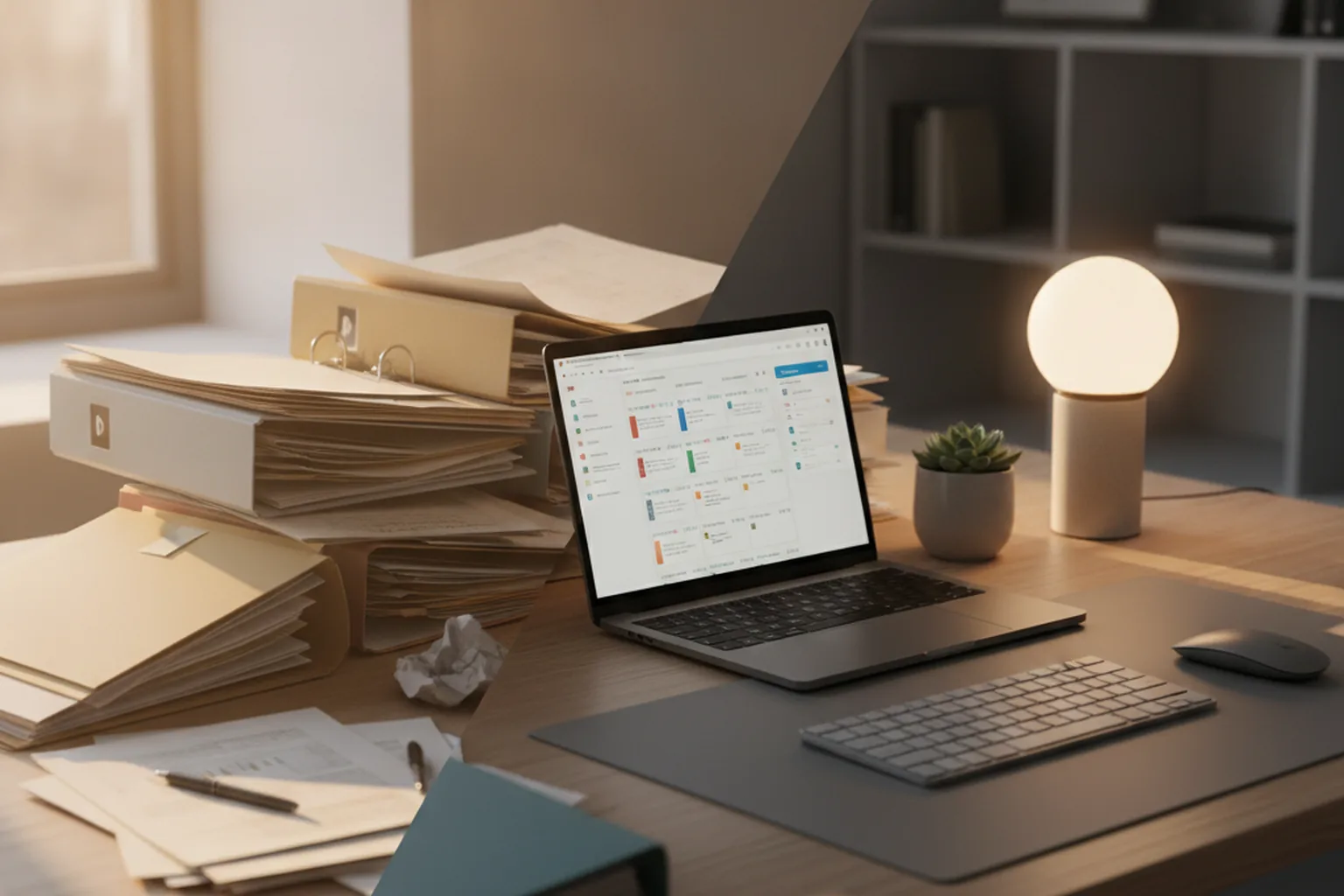
TL;DR: If your business still runs on paper invoices, a filing cabinet, and phone calls to confirm what's already been done, you're not behind, but you are spending time and money that a digital workflow would save. The fix isn't digitizing everything at once. Pick the single paper-based workflow causing the most friction, map it honestly before you touch any software, choose the simplest tool that actually fits it, migrate your records carefully, and run the old and new processes in parallel until the team trusts the new one.
The Real Cost of Running a Business on Paper
A paper-based business doesn't usually look broken from the outside. Invoices get written, filed, and eventually paid. Appointments get scheduled over the phone. A notebook or a filing cabinet holds the history of every customer. It works, until the business grows past the point where one person can hold all of it in their head.
Signs You're Still a "Paper Business"
- Phone-tag scheduling. Booking or confirming an appointment takes two or three calls back and forth instead of a shared calendar link.
- Paper invoices and receipts. Billing happens on carbon-copy pads or printed templates, filed by hand and tracked in a notebook.
- Filing cabinets as the system of record. Customer history, contracts, and records live in folders, and finding one means physically pulling it.
- Tribal knowledge in one person's head. One employee, often the owner, is the only one who actually knows where things are and how the process really works.
What It Actually Costs You
The clearest cost is time: re-writing the same information by hand, searching a filing cabinet for one record, calling a customer back because a note got lost. The less visible costs matter more over time. Cash flow lags because paper invoices take longer to send, track, and chase than digital ones. Errors creep in because handwritten numbers get mistyped when someone eventually enters them into a spreadsheet. And hiring gets harder, because training a new employee on a system that exists only on paper and in one person's memory takes far longer than handing them a login.
What "Digital Transformation" Really Means for a Small Business
For a small business, digital transformation means replacing paper-based and manual steps in your most important workflows with digital tools that store information in one searchable place and let more than one person work from the same up-to-date record. It isn't a corporate initiative that requires a dedicated department or a seven-figure budget. For most small businesses it's a handful of specific, practical swaps: a shared digital calendar instead of a phone-tag booking system, cloud invoicing instead of a carbon-copy pad, a simple customer database instead of a filing cabinet.
Step 1: Pick the One Workflow That's Hurting Most
Don't start by trying to digitize the whole business at once. Pick the single workflow that costs the most time, causes the most mistakes, or frustrates customers the most, and start there. For a lot of small businesses that's scheduling or invoicing, because both touch every customer and both are painful to run on paper or over the phone. A working result on one workflow builds the confidence, and the internal case, for digitizing the next one.
Step 2: Map What You Actually Do Today Before You Digitize It
Before you buy or build anything, write down exactly how the workflow runs today, step by step, including the parts that only exist because "that's how we've always done it." Who fills out what, where does the paper go next, who approves it, how does it get filed. This step feels slow, but skipping it is how businesses end up digitizing a broken process instead of fixing it. A workflow you don't fully understand on paper is one you can't properly translate into software.
Step 3: Choose Off-the-Shelf, No-Code, or Custom-Built
When an Off-the-Shelf Tool Is Enough
For common workflows, tools like QuickBooks for invoicing, Square for point-of-sale, or Google Workspace for shared documents and scheduling already do the job well and cost far less than building something yourself. If your workflow looks close to how most small businesses in your category operate, start here before considering anything more complex.
When No-Code or Low-Code Bridges the Gap
If an off-the-shelf tool almost fits but is missing one piece, such as connecting your scheduling app to your invoicing tool, a no-code or low-code automation platform can often close that gap without hiring a developer. This is usually the right move when you need two or three existing tools to talk to each other, not a brand-new system.
When You Need Something Built for Your Exact Process
Sometimes neither option fits. If you've tried off-the-shelf tools and keep hitting the same wall, or your workflow is genuinely specific to how your business operates, it's worth talking to a team that offers digital platform development services, because the honest answer at that point usually isn't a missing feature in any one app. It's that no generic tool was built for a process like yours in the first place.
Step 4: Migrate Your Data Without Losing It
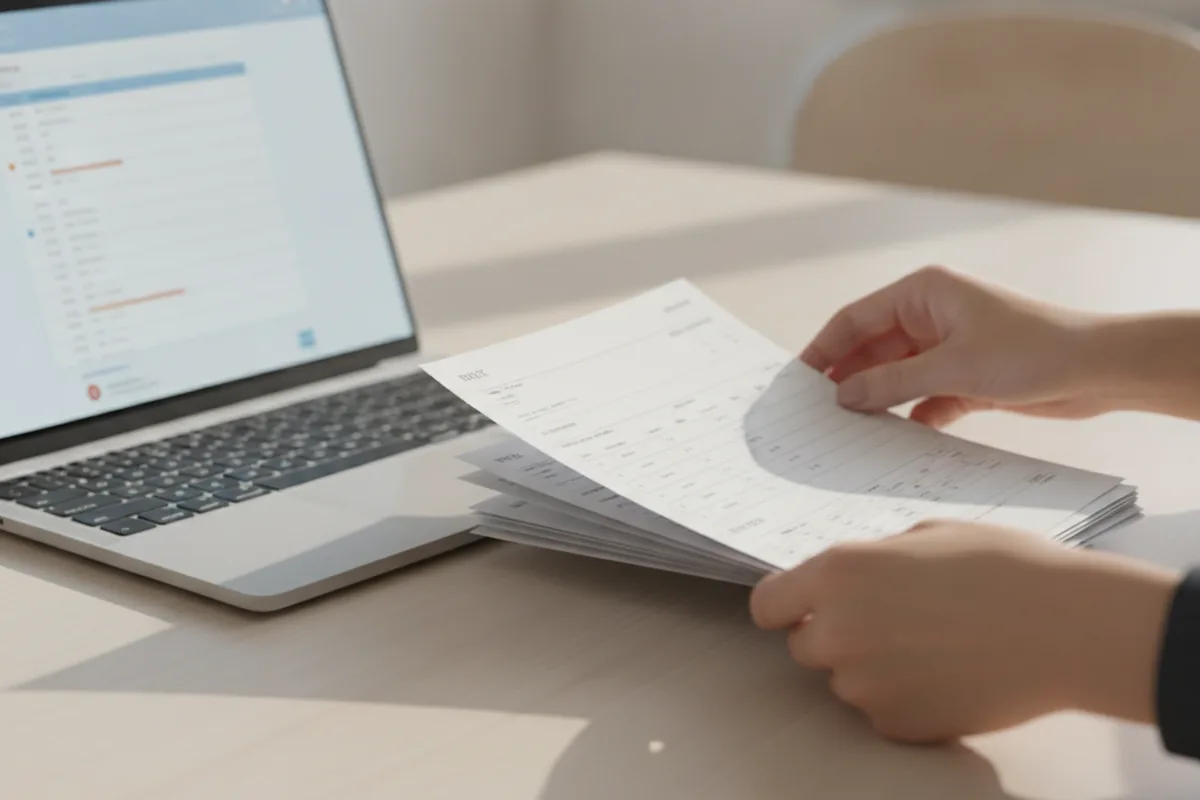
Moving years of paper records into a digital system is where these projects quietly run over schedule. Before you migrate anything, sort your paper records into three buckets so you're not scanning or re-typing information you don't actually need in the new system.
| Category | What belongs here | What to do with it |
|---|---|---|
| Keep & migrate | Active customer records, open invoices, anything you reference weekly or more often | Enter or import it into the new system first, and verify it against the paper original |
| Archive | Closed records still needed for tax, legal, or warranty reasons | Scan and store as searchable PDFs; keep the originals per your retention requirement |
| Discard | Duplicate copies, superseded drafts, and records past their retention period | Securely shred once you've confirmed nothing in that batch is still needed |
Step 5: Train Your Team and Run Old and New in Parallel
Don't retire the paper process on the same day the new tool goes live. Run both in parallel for a short window, long enough for the team to trust the new system and for you to catch anything the migration missed. Budget real time for training, not just a quick walkthrough: a tool that fits the workflow still needs people to learn where things live and why the new steps replace the old ones.
How Long Does This Actually Take?
Digitizing a single workflow, such as moving invoicing from paper to a cloud tool, can realistically be live in a few weeks once you include setup, data migration, and a short parallel-running period. A broader effort covering several workflows, or one that requires custom-built software, usually takes a few months when you factor in mapping each process properly, migrating historical records, and training the team on each piece as it rolls out. Tackling one workflow at a time is slower to finish everything, but it gets you real value sooner than waiting for one big launch date.
What It Costs to Digitize a Small Business
Costs vary enormously by scope, so treat any single number with caution. Digitizing one workflow with an off-the-shelf tool typically costs the price of a monthly subscription plus the time it takes to set it up and migrate records, often a few hundred dollars in time even if the software itself is cheap. Adding no-code automation to connect two or three tools usually adds a modest one-time setup cost on top of that. A custom-built platform, scoped to one specific workflow, is a larger investment that a development partner can only estimate accurately once they understand exactly which process needs to move first; budget for a proper scoping conversation before committing to a number.
Common Mistakes When Going Digital
- Digitizing everything at once. Trying to replace every paper process in one project is how these efforts stall halfway through.
- No backup of paper records during the transition. Shredding originals before the new system has been verified against them is a risk that's easy to avoid and expensive to recover from.
- Skipping staff training. A tool nobody was properly shown how to use gets worked around, which quietly recreates the paper process you were trying to replace.
- Ignoring mobile use. If staff or customers need to use the new system away from a desk, such as on a job site or delivery route, a tool that only works well on a desktop computer won't actually get adopted.
FAQ
Do I need to go fully paperless, or can I digitize gradually?
Gradually, and for almost every small business that's the right approach. Pick the single workflow causing the most pain, digitize it first, and keep everything else running the way it already does until that one change has proven itself. Trying to go fully paperless in one move is a common reason these projects stall or get abandoned halfway through.
What's the cheapest way to start digitizing a small business?
Start with free or low-cost off-the-shelf tools for the single workflow that's costing you the most time, such as a free-tier invoicing app or a shared cloud spreadsheet instead of paper logs. The cost of digitizing goes up once you need to connect several systems together or build something custom, so it's worth proving the value on one workflow before spending more.
Can I digitize without hiring an IT person?
For the first few steps, usually yes. Off-the-shelf and no-code tools are built for small teams without in-house IT, and most come with their own support and setup guides. You typically need outside technical help once you're connecting several tools together, migrating a large or messy dataset, or building something custom around a process no off-the-shelf tool fits.
How do I know if I need custom software instead of an off-the-shelf app?
If you've tried two or three off-the-shelf tools and keep running into the same wall, such as a workflow step the software simply can't do or a report it can't produce, that's usually the signal. Off-the-shelf tools are built for the average business in a category; if your process is genuinely different from that average, a custom build built around how you actually work tends to pay off faster than forcing a generic tool to fit.
What happens to my old paper records after digitization?
Don't shred them the day you go digital. Keep the originals, or at minimum scanned copies, for whatever retention period applies to your industry and location, since digitization doesn't automatically satisfy legal or tax record-keeping requirements. Once that retention window has passed and you've confirmed the digital records are accurate, the paper can be archived off-site or securely destroyed.
How do I keep data secure during the switch?
Limit who can access the new digital system to the people who actually need it, use unique logins instead of a single shared password, and keep a backup of your data in a second location during the transition window. If the records involve customer payment details or other sensitive information, check what the tool you're choosing offers for encryption and compliance before you migrate anything into it.
Already digital but drowning in five disconnected apps instead of paper? That's a different problem, one that comes from solving this exact step too many separate times — see our guide to consolidating a patchwork of business apps into one platform.
None of this requires turning your business upside down in a single weekend. It requires picking the one paper-based workflow that's costing you the most, mapping it honestly, choosing the simplest tool that actually fits, and giving your team time to trust the new way before retiring the old one. Businesses that get this right don't just go digital, they go digital in an order that never puts a Monday morning at risk.
This article is for informational purposes only and does not replace professional advice. Found an error? Let the editors know via the contact page.