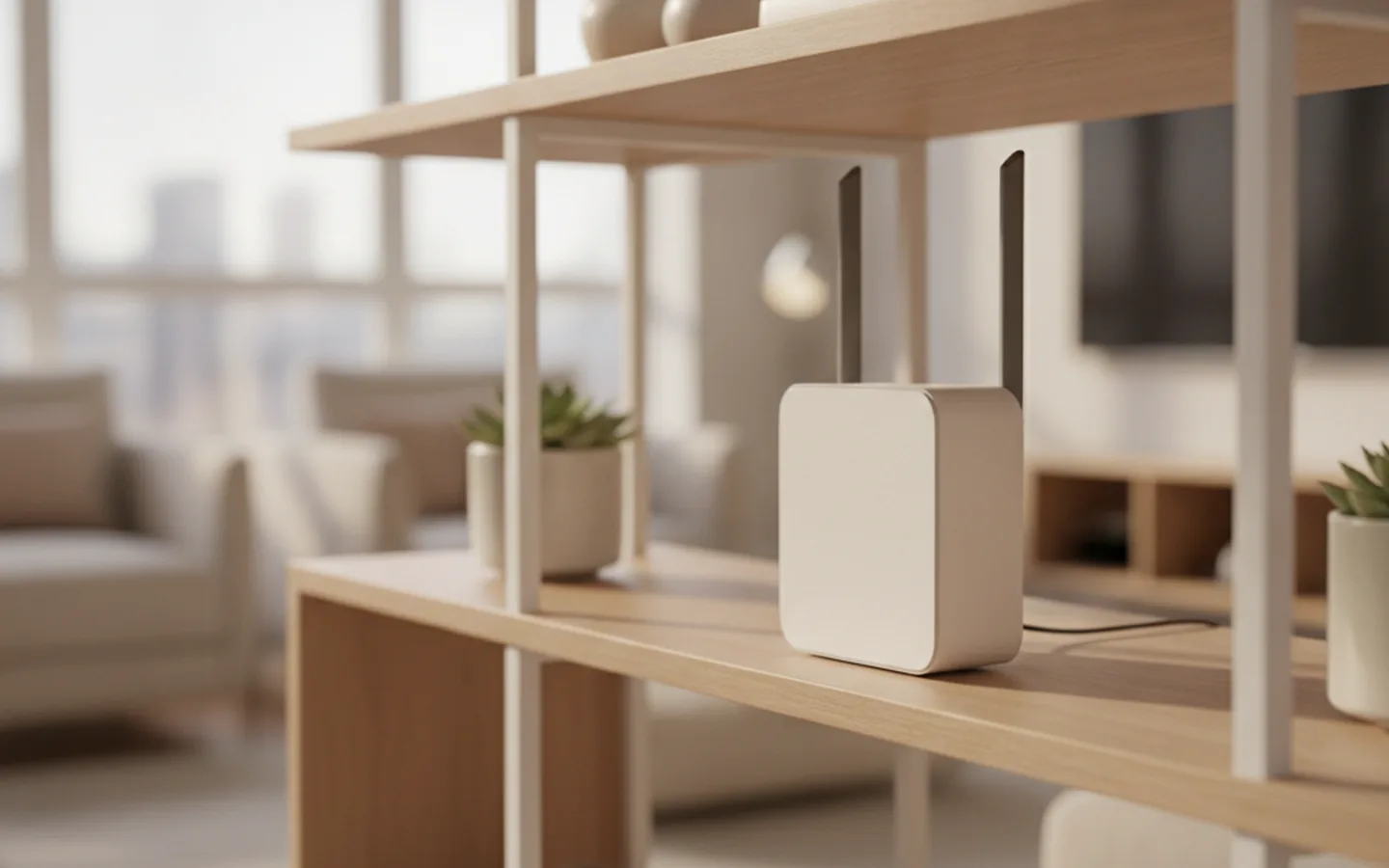
People usually think about their router when something starts to annoy them: a video call freezes in a back room, a show buffers on the TV, and the phone in the bathroom shows just one bar. Often the issue isn't the provider but an outdated or poorly placed router. We break down what to look for when buying a new one, and when it's worth switching straight to a multi-point system.
There are no brands or models here: lineups get refreshed every year, but the principles for choosing stay the same. Prices are approximate, for 2026.
Start by figuring out your needs
Before comparing specs, answer a few questions. They quickly rule out both overpaying for things you don't need and options that are too weak.
- What speed does your plan give you? If you have 100 Mbps, gigabit ports and a top-tier Wi-Fi standard won’t add much. If you have 500 Mbps or more, a weak router will become the bottleneck.
- What’s the floor area and layout? A 35 m² studio and a 90 m² three-bedroom apartment with load-bearing walls need different solutions.
- How many devices? Phones, laptops, TVs, speakers, smart bulbs, and cameras: a family of four can easily rack up 20-30 connections.
- What’s putting a load on the network? Working from home with video calls, online gaming, 4K video, and cloud backups need stability, not just speed.
Check whether the router is actually the problem
Before buying, make sure the problem isn't on the provider's side. Connect a laptop to the router with a cable and measure the speed on a few services at different times of day. If the speed over the cable matches your plan, but over Wi-Fi in the next room it drops three to four times, the issue is your wireless network. But if the speed is low even over the cable, call your provider first: a new router won't help here, and the money will be wasted.
It's also worth checking how old your current device is. If a router is more than five years old, it's almost certainly running Wi-Fi 5 or even Wi-Fi 4, isn't getting updates, and physically can't handle twenty devices. In that case, replacing it is justified even with decent coverage.
Wi-Fi standards: what to get in 2026
The standard determines how fast and how reliably the router communicates with devices. It's important to remember that it only works with gadgets that support that standard. An old laptop on Wi-Fi 5 will run at Wi-Fi 5 speeds even with the newest router.
| Standard | Bands | Who it's for | Approximate router price, ₽ |
|---|---|---|---|
| Wi-Fi 5 (802.11ac) | 2.4 and 5 GHz | Outdated, not worth buying new | 2,000–3,500 |
| Wi-Fi 6 (802.11ax) | 2.4 and 5 GHz | Most apartments, plans up to 500 Mbps | 3,500–9,000 |
| Wi-Fi 6E | 2.4, 5, and 6 GHz | Lots of new devices, dense buildings | 9,000–18,000 |
| Wi-Fi 7 (802.11be) | 2.4, 5, and 6 GHz | Gigabit plans, headroom for years to come | 12,000–35,000 |
For a typical apartment in 2026, the sensible choice is a Wi-Fi 6 router. It handles a large number of devices noticeably better than Wi-Fi 5 and doesn't cost much. Wi-Fi 7 makes sense if you have a gigabit plan, newer phones and laptops, and want a device with headroom for the next five to six years. The 6 GHz band isn't available on every device or in every mode in Russia, so check before buying whether it will actually work for you.
The most expensive router won't save an apartment if it sits in a closet by the front door. Where you put it is often more important than one extra gigabit in the specs.
Specs that actually matter
Ports
If your plan is faster than 100 Mbps, all the router's ports should be gigabit, including the WAN port that the provider's cable plugs into. For plans faster than a gigabit, you need a 2.5 Gbps port. A TV, computer, and game console sitting right next to the router are better connected by cable: it's more stable than any Wi-Fi and frees up airtime for phones.
Processor, memory, and firmware
A weak processor and little RAM show up once you have a lot of devices: the router starts to lag and needs rebooting. A good sign: regular firmware updates and a convenient setup app. A device that stops getting updates becomes vulnerable within two or three years.
Technologies worth paying attention to
- MU-MIMO and OFDMA: let the router serve several devices at once, which is the main advantage of Wi-Fi 6 and newer.
- Beamforming: aims the signal at a specific device and improves the connection at a distance.
- WPA3: a modern encryption protocol, the minimum required for security.
- Guest network: a separate network for guests and smart devices, isolated from your computers.
- Mesh support: the option to add a second point from the same system later.
A single router or a mesh system
Wi-Fi signals pass poorly through concrete and brick walls, and even worse through mirrors, aquariums, and metal doors. So even a powerful router in an apartment with load-bearing walls doesn't always cover the whole space. This is where mesh helps: two or three points that work as one network with one name and password. Devices switch between them without the user noticing.
| Apartment | What fits | Budget, ₽ |
|---|---|---|
| Studio or one-bedroom up to 45 m² | One Wi-Fi 6 router in the center of the apartment | 3,500–7,000 |
| Two-bedroom, 45-70 m², panel building | One good router or a two-point mesh | 6,000–15,000 |
| Three-bedroom, 70-100 m², monolithic building | Mesh with two to three points | 12,000–30,000 |
| Apartment over 100 m² or two floors | Mesh with points connected by cable | 20,000–50,000 |
Regular Wi-Fi extenders are cheaper than mesh but work worse: they often create a separate network and cut speed in half. If the walls are already wired for cable, or the apartment has structured cabling, it's better to connect mesh points by wire: this setup gives maximum speed in every room.
When buying mesh, get all the points from the same system and generation. Mixing devices from different manufacturers only works over a wired connection and in plain access-point mode, and you won't get seamless switching between them that way. And don't put the second point in the farthest room: it needs a good signal from the first one, so the best spot is usually halfway between the router and the area where the connection drops.
Where to put the router
The most common mistake: the router sits wherever the provider ran the cable, meaning the hallway, a closet, or a utility cabinet. The signal bounces off walls and doors, and only scraps reach the far rooms.
- Put the router closer to the center of the apartment, at a height of 1-2 meters, on an open shelf.
- Don't hide it in a cabinet, behind the TV, or next to a microwave.
- If the provider's cable runs into the hallway, extend it to the center through cable trunking: that's cheaper than a second point.
- Point the antennas in different directions: one vertically, the other at an angle.
- After setting it up, walk around the apartment with your phone and a signal-measuring app.
First setup in 15 minutes
Most modern routers are set up through a smartphone app: just plug in the provider's cable, turn on the power, and follow the prompts. But a few settings are worth checking manually, even if the setup wizard already did everything.
- Set a clear network name without your address or last name, and a long password at least 12 characters.
- Turn on automatic firmware updates, or set a reminder to check for them once a quarter.
- Turn off WPS: this feature makes connecting easier but weakens security.
- Move TVs, speakers, and cameras onto the guest network, if the router supports it.
- Leave one shared name for the 2.4 and 5 GHz bands so devices pick the best one themselves; split them only if some old gadget refuses to connect.
The bottom line is simple. For most apartments, a Wi-Fi 6 router with gigabit ports and decent firmware, placed in the center of the apartment, is enough. If the floor area is large or the walls are thick, get a two-point mesh. Buy Wi-Fi 7 when you have a gigabit plan and newer devices, not for the numbers on the box.
FAQ
Can I use the router my provider gave me?
You can, but it's often a budget model with limited settings. If the connection works fine for you, there's no need to replace it. If you have problems with coverage or speed, your own router usually handles them better.
How often should you replace a router?
Roughly every four to six years, or when the manufacturer stops releasing firmware updates. Another reason: you've switched to a faster plan and your old router can't keep up with it.
Do I need a router with mobile internet support?
Only if your home has no wired connection or you need a backup channel. For an apartment with fiber or Ethernet from a provider, that's an unnecessary extra cost.
This article is for informational purposes only and does not replace professional advice. Prices are approximate and current as of the review date. Found an error? Let the editors know via the contact page.